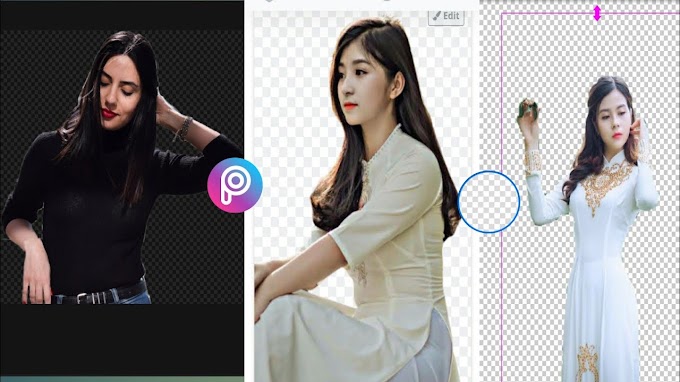
How to make into

To get a background you have to enlarge the background then you have to write then you need to capture it then use under select To change it is to take any intro effect, to multiply the capture, to use any background, to change the background, to change its colour, to change the colour to green, to edit it. I want to change the background colour, I want to change the background colour of the other, I want to change the colour of the other colour, I want to change the colour of the other colour, I want to change the colour of the other colour. Your intro is ready to edit. Now you can play log.
Hey, welcome back to my new video. This is
easy tutorials, and for those of you who are

the first time in this channel, please consider
subscribing. Today we'll be creating this:

Before we start, I'd like to invite you to
support me on Patreon. You can also get access

to all my premium content.

So let's start.

First, we have to import our footage into
After Effects. You can download this project,

including the sound effect, from the link
in the description.

Create a new composition and name it: energy
logo reveal. I'm using a FULL HD 1080 pixels

preset, with 30 frames per second, and 8 seconds
long.

Bring your logo into the logo reveal composition.

Right-click on it, and pre-compose it.

Let's name the new composition logo.

Don't forget to select move all attributes
into the new composition.

Create a new solid, and name it: fractal.

Go to effects and presets panel, and search
for: fractal noise.

Apply it to your layer, and let's change its
settings.

Change contrast to 500.

Create a keyframe on brightness, and change
its value to -400.

Then, move to 7 seconds, and change the value
to 300.

Go to effects and presets panel, and search
for: find edges.

Apply the effect to your fractal layer.

Select the invert box.

Change the track matte of your logo layer
to: luma matte.

Select both layers, and click control D to
duplicate them.

Precompose the newly created layers.

Name this composition: emitter.

Check these boxes to make all these layers
3D.

Then, select the fractal layer, and delete
the find edges effect from it.

Our logo reveal looks like this until now.

Create a new solid, and name it: particles.

Go to effects and presets panel, and search
for: particular.

As you already know, this is a paid plugin,
but if you don't have it yet, you can go to

the Red Giant website, and download the trial
a version of it.

Let's adjust its settings.

Open the emitter.

And change the emitter type to layer.

Particles per second to 1000000.

Velocity to 0.

Layer emitter to the emitter layer we've created
earlier.

Click on edition extras.

And set periodicity and to 100.

Open particle.

And change life to 2.

Size to 3.

Size random to 100%.

Then click on size overlive

And select this preset.

Open the physics, and click on air.

Here you have to change the wind x to 100.

Wind y to -45.

And wind z to -70.

Open the turbulence field.

And change affects position to 200.

Open the auxiliary system, and change emit,
to continuously.

Size to 1.

Colour from main to 100%.

Click here on physics.

Then change the wind affect to 100%.

And turbulence position to 200.

Go to effect and presets panel and search
for: cc vector blur.

Apply it to your particles layer, and change
the amount to 20.

Go again to effect and presets panel and search
for: glow.

Apply it to your layer.

Then, change the glow threshold to 40%.

The glow radius to 30.

And the glow intensity to 5

Let's add some movement to our logo animation.

Create a new camera. I am using the 35 millimetres
preset.

Click P, to open its position settings.

Move to seven seconds, and create a keyframe
on position.

Then, move to the first frame, and change
the z value to -1200.

Bring your background at the bottom of your
logo reveal composition, and, before we see

the final result, select this keyframe, and
easy ease it.

Now, RAM previews your logo animation.

Wow, it looks great!

I hope you enjoyed this tutorial on how to
create an energy logo reveal in After Effects.

Don't forget to subscribe, hit the like button
and comment. It would be great to know your

opinions about my tutorials. Also, you can
make requests for new tutorials, on interesting

effects or animations that you would like
to learn.

See you soon!
Cool smoke effect